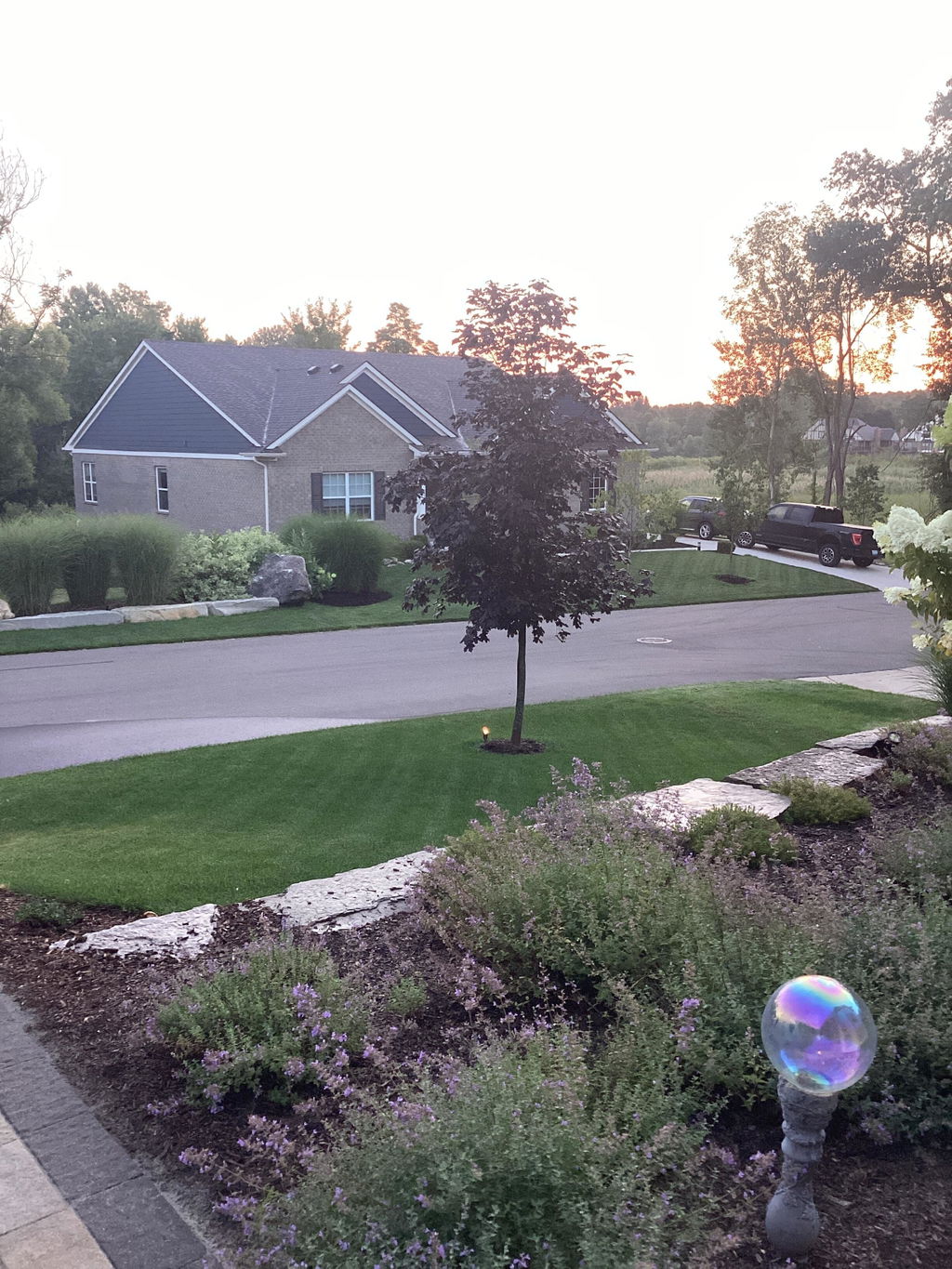
Why can't the robot return to the charging station?
1) Ensure there are no obstacles blocking the path between the charging station and the work area.
2) Ensure the area within 1 meter around the charging station is open and flat.
3) Check if the charging station has been moved. If it has, you can remotely control the robot to return to the charging station. The station's location will be automatically updated the next time the robot leaves the charging station and starts working.
4) Ensure the charging station is connected to an electrical outlet and has power.
5) Check that the reflective films on the charging station are clean and unobstructed.
6) Check the baseplate of the charging station and the drive wheels to ensure they are free of mud or dirt.
7) Make sure the robot's lidar is clean and unobstructed.
8) Check the robot's battery level. If the robot’s battery is depleted, manually move it to the charging station for recharging.
If the problem persists, there may be an issue with the robot's positioning. Please try remapping the area. For additional assistance, contact the Dreame after-sales service team.
Why can't the robot charge in the charging station?
1) Check the charging station to ensure that it is connected to an electrical outlet and has power.
2) Ensure the charging contacts on the robot and the charging station are properly connected.
3) Check the charging contacts on the robot and the charging station to make sure they are clean.
If the problem persists, contact the Dreame after-sales service team.
Will poor Wi-Fi signal in my garden affect mapping and mowing?
The robot is equipped with a Bluetooth feature, allowing it to connect to the app to complete mapping successfully without requiring a Wi-Fi connection. After mapping is complete, you can set a schedule, and the robot will follow it to mow autonomously, even without network connectivity. Additionally, you can press the buttons on the control panel to start tasks. Also, the Link module is pre-installed in the robot, offering up to 3 years of free Link service, which allows the robot to stay connected to the app and be remotely controlled, even without Wi-Fi.
My Wi-Fi signal is strong, but the robot always fails to connect to the network. What should I do?
1) Ensure that the firewall or other security features on your home Wi-Fi are disabled. If they are enabled, please disable them before retry connecting.
2) Check your Wi-Fi password to confirm it doesn’t contain punctuation marks or a mix of uppercase and lowercase letters. If it does, try changing it to a simpler password without special characters, then retry connecting.
3) Check your robot’s binding status to ensure it is not already linked to another account. The robot can only be connected to one account at a time. To switch accounts, remove the robot from the current account in the app before proceeding with the network setup.
If the problem persists, contact Dreame after-sales service for further assistance.
Does the robot support 4G connection?
Yes, the robot comes with a pre-installed Link module that includes Link Service, free for up to 3 years once the robot is powered on. This allows the robot to stay connected to the app and be remotely controlled without a Wi-Fi connection.
How do I map my garden if its front and back yards are not connected?
a. If your front and back yards are not connected but there is a passageway the robot can travel through:
You can first create the boundary of the front yard, then tap "Work zone" in the app to remotely control the robot to go to the backyard to create the boundary. Next, tap "Path" to remotely control the robot to create a path connecting the front and back yards. Finally, generate a complete map.
b. If there is a physical barrier between the front and back yards that prevents the robot from moving between them:
The robot supports two individual maps. You can create separate maps for the front and back gardens, then switch between them as needed.
Do I need two charging stations to create two maps?
Yes, because the robot needs to start from the charging station for mapping, we recommend placing a separate charging station for each map. When switching between maps in the app, simply move the robot manually to the corresponding area.
Can I place the charging station outside the lawn when creating a map?
Yes, you can install the charging station in any suitable location. If the charging station is outside the work area, you can tap "Path" during mapping to remotely control the robot to move from the work area to the area in front of the charging station, creating a connecting path. The robot will not activate the blade disc while moving along this path to avoid damaging the surface.
The boundary automatically detected by the robot is incorrect. How can I modify it?
1) During Auto Boundary Detection, you can exit Auto mode at any time and use the "Undo" feature to remotely control the robot and remove unwanted boundary sections.
2) After the map is generated, you can also modify it through the "Map Editing" section, where you can expand or split zones as needed.
There have been some changes to my garden. Do I need to remap?
Yes, you can directly edit the existing map in "Map Editing" via the app. If your garden has changed significantly, we recommend remapping to avoid potential issues with positioning.
Will moving the charging station's location after mapping affect the robot's work?
If you move the charging station's position substantially while the robot is working, it will lead to a failure in docking. However, the robot will update the charging station's location automatically each time it leaves the charging station to start a task. If you have moved the charging station outside the work area, you can go to Map Editing > Set Path to create a path to connect the charging station with the work area.
How do I modify the map after it is complete?
1) Expanding a Zone: Go to "Map Editing" and select "Set zone". If the new zone doesn’t overlap with an existing one, a path is required to connect them. If they do overlap, the new zone will automatically merge with the existing one.
2) Deleting a Zone: In "Map Editing", you can delete independent zones that have not been separated. To remove part of a zone, use the "Set no-go zone" function to draw the area you want to delete.






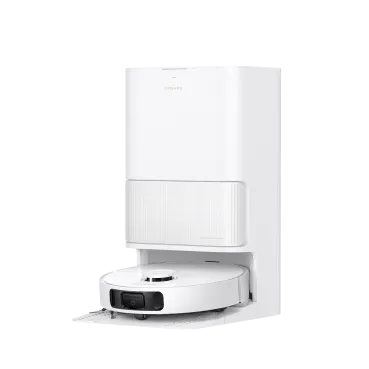


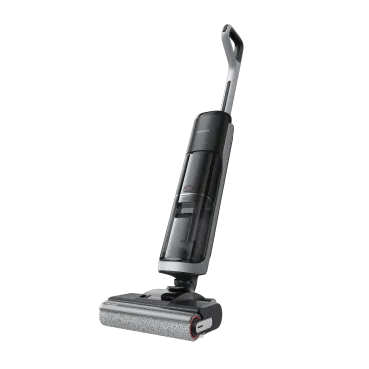



 Robot Lawn Mowers

















 Humidifiers


 Smart Door Lock


 Australia
 中国大陆
中国大陆 日本
日本


 Türkiye


 Ireland
 Portugal
 Italia
 Netherlands
 Belgium
 Greece
 Polska
 Norway
 Sweden
 Finland
 Denmark
 Hungary
 Czechia
 Slovenia
 Croatia
 Switzerland
 United
Kingdom
United
Kingdom
 Canada


 Colombia