










 Robot Lawn Mowers

















 Humidifiers


 Smart Door Lock


 Australia
 中国大陆
中国大陆 日本
日本


 Türkiye


 Ireland
 Portugal
 Italia
 Netherlands
 Belgium
 Greece
 Polska
 Norway
 Sweden
 Finland
 Denmark
 Hungary
 Czechia
 Slovenia
 Croatia
 Switzerland
 United
Kingdom
United
Kingdom
 Canada


 Colombia

In this article
A HomeKit robot vacuum is one you control from Apple's Home app, and as of iOS 18.4, it is finally possible. Apple added Matter support for robot vacuums in that update, so a compatible model appears in the Home app alongside your lights and thermostat.
If you use an iPhone or iPad, you can start a clean or use Siri without opening a separate app. This guide covers what Apple Home controls, what still needs the Dreame app, how to connect the two, and which Dreame models support Matter today.

Can You Use a Robot Vacuum With Apple Home?
Yes. While older guides say robot vacuums don't work with Apple Home, that changed with iOS 18.4, and a HomeKit robot vacuum now pairs and runs straight from the Home app.
You control it from the same app as the rest of your smart home, and you can start a clean with Siri. For anyone already in Apple's ecosystem, an Apple Home robot vacuum behaves like any other accessory.
Apple Home vs. Matter: Understanding the Differences
Apple Home is the app you use to control your smart home. Matter is the technology that lets a device connect to that app, regardless of the brand that made it. A robot vacuum with Matter can join Apple Home.
What Matter actually does
Before Matter, Apple had to support each brand on its own, and most robot vacuums were left out. Matter replaced that with a single common way for devices to connect, so any vacuum that supports it can join Apple Home in the same way
How Apple Home uses it
Adding a Matter vacuum to Apple Home requires a home hub, a HomePod, a HomePod mini, or an Apple TV, all set up and left on at home. The hub pairs the vacuum and handles automations and control when you are away.
Once it is paired, the vacuum shows up in the Home app with basic controls and Siri access.
Apple Home control depends on your network. If the Wi-Fi drops, the vacuum keeps cleaning and docking on its own, but remote control and away-from-home commands stop until it reconnects. This guide on using a robot vacuum without Wi-Fi covers what can run offline and what requires a connection.
What You Can Control From the Apple Home App
The first thing to know is the capabilities of both apps. Apple Home handles everyday cleaning, and the detailed settings stay in the Dreame app.
What works in Apple Home
From the Home app, you can start or pause a clean and send the vacuum to its dock with a tap. You can send it to specific rooms and pick a cleaning mode for the job, from a quick daily pass to a deep clean. It also works in automations, so a clean can start when everyone leaves the house or on a schedule you set.
Siri runs the same controls by voice. "Hey Siri, clean the kitchen" sends the vacuum to one room, and "Hey Siri, what is my vacuum doing?" reports its status without opening an app. Room commands work once you've named your rooms in the Dreame app.
What still needs the Dreame app
Editing the map and setting no-go zones stay in the Dreame app, along with mop water adjustments. Apple Home handles the everyday controls like starting a clean and scheduling, so you only need the app for the deeper setup. This works the same way across all brands, since it depends on what Matter and Apple Home currently support.
Here's how control is split between the two apps.
| Feature | Apple Home | Dreame app |
|---|---|---|
| Start, pause, and dock | ✓ | ✓ |
| Room selection and whole-home cleaning | ✓ | ✓ |
| Cleaning modes (Auto, Quick, Quiet, Deep) | ✓ | ✓ |
| Scheduling and automations | ✓ | ✓ |
| Siri voice control | ✓ | — |
| Map viewing and editing | — | ✓ |
| Setting no-go zones | — | ✓ |
| Mop water and drying settings | — | ✓ |
How to Add a Robot Vacuum to Apple Home
Set up the vacuum in the Dreame app first, then add a robot vacuum to HomeKit with a Matter setup code. Do it in that order, or the pairing usually fails.
What you need before starting
Before you start, you need:
- An iPhone or iPad on a current iOS version
- A home hub (a HomePod, HomePod mini, or Apple TV), which Apple requires to add and use any Matter accessory
- The vacuum already set up and online in the Dreame app
If it is not online yet, connect it first. Robot vacuums only pair over a 2.4 GHz network, and your phone has to be on the same network. This guide to connecting your robot vacuum to Wi-Fi covers the router and band settings that catch people out.
Pair the vacuum in the Dreame app first
Do the normal Dreame app setup first, then add Matter pairing as a separate step. If you have not installed it yet, download the Dreame app to get started. The vacuum needs to be mapped and connected in the Dreame app before it can join Apple Home.
Add it to Apple Home with the Matter code
Open the Home app, tap Add Accessory, then scan or enter the Matter setup code from the Dreame app. You will find that code in the Dreame app under the vacuum's device settings, in the Matter or smart-home menu. This step trips people up most, so take it slowly. Apple's guide to pairing Matter accessories walks through the scan-or-enter process.
Assign it to a room and name it for Siri
In the Home app, you sort your accessories into rooms like Kitchen or Living Room. Put the vacuum in the room where it usually cleans and give it a short name, since that is what makes Siri commands and automations work smoothly. Simple names work best for Siri. If you want ideas, these funny robot vacuum names are a good start.
Fixing Common Apple Home Setup Problems
Most setup problems trace back to one cause. The vacuum was not fully set up in the Dreame app before the Matter pairing attempt. Work through these in order.
The robot vacuum doesn't appear as an option
This usually means you started the Matter step too early, or the phone and vacuum are on different Wi-Fi networks. Finish the Dreame app setup, put both on the same network, then try again. If it still stalls, try a soft reset, a quick power cycle that clears software glitches without erasing your map or Wi-Fi.
This guide to resetting a robot vacuum covers when a soft reset is enough and when you need a full one.
Siri doesn't recognize the name
Rename the vacuum in the Home app to something simple, and say it exactly as named. Long or unusual names are the most common cause.
Status or controls look wrong or missing
What you see in Apple Home can be out of date or incomplete, since only a small amount of data passes through Matter. For the full picture on maps and water levels, open the Dreame app.
Is a HomeKit Robot Vacuum Worth It?
Setting up a HomeKit robot vacuum takes a few minutes, and for iPhone users, it is worth it for the convenience of a single app and Siri control. Just remember the detailed cleaning settings still live in the Dreame app.
If you are still choosing a model, the robot vacuum comparison tool lets you line up features like suction and mopping side by side, so you can match one to your home.
If you are weighing a mopping robot vacuum against a separate wet-dry machine, what to know before buying a vacuum and mop combo breaks the choice down by floor type and how hands-off you want cleaning to be.
Dreame Robot Vacuums with Apple Home and Matter Support
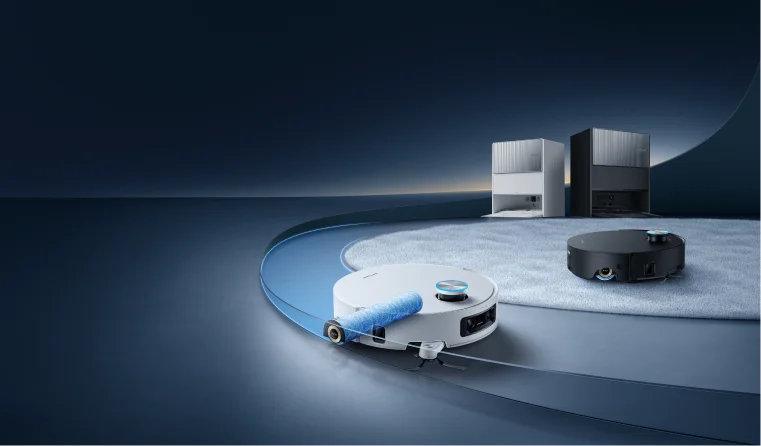
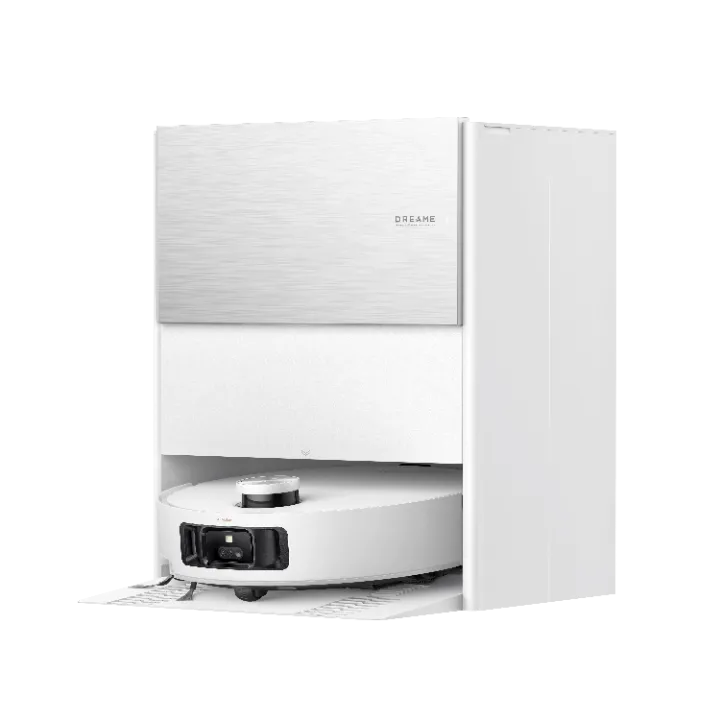
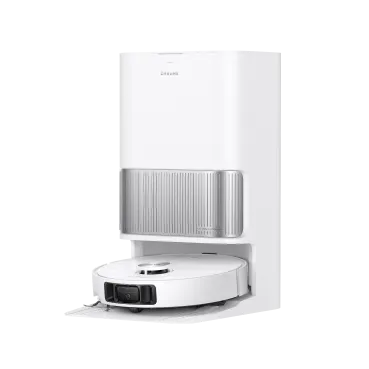
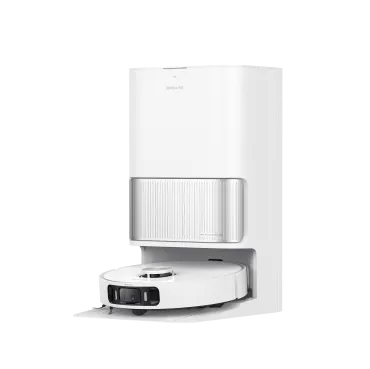
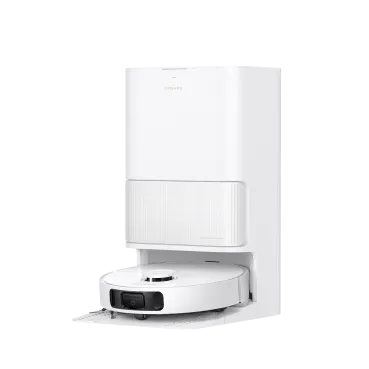
These Dreame robot vacuums support Matter, so each one works as an Apple Home robot vacuum you can run from the Home app. Once you pair one through Matter, you can start it with a Siri command and check its cleaning progress at a glance, without opening a separate app.
Many of these models also let you start a clean or check status from your Apple Watch, so you are not tied to your phone. Maps and no-go zones still live in the Dreame app, while Apple Home covers the everyday control.
Not sure if your model is ready? Open the Dreame app and install any pending firmware update, since Matter arrives that way. Once Matter shows up in the vacuum's settings, you can add it to Apple Home.
Since March 2025, the Dreame models below have supported Matter and can be added to Apple Home:
Browse the full range of robot vacuums, all designed to match different households.
Frequently Asked Questions
How do you add a robot vacuum to Apple Home?
Set it up in the Dreame app first, then add it to Apple Home using the Matter setup code that the app generates. The Home app asks you to scan or enter that code, and the walkthrough above covers each step.
Do all robot vacuums work with Apple Home?
No. Only models that support Matter can join, and support is rolling out by brand and model through software updates. Check your model's Matter support before you expect it to appear. The Dreame models listed above are confirmed to support it.
Do you need a HomePod or Apple TV for this?
Yes. A home hub such as a HomePod, HomePod mini, or Apple TV is required to add and use a Matter robot vacuum in Apple Home, and it also handles automations and control when you are away. If you do not have one, set it up before you pair the vacuum.
Can Siri start a clean in one specific room?
Yes, on models that support it. Apple Home can send the vacuum to specific rooms through Matter, using the room names from the map you set up in the Dreame app. Room support varies by model, so check yours if a room command does not work.
Does Apple Home replace the Dreame app?
No. Apple Home gives you quick control and voice commands, while the deeper setup like maps and no-go zones stays in the Dreame app. You will still open the app to fine-tune how the vacuum cleans.
Is a Matter connection more private than a cloud one?
Matter supports local, on-network control for many functions, reducing reliance on a maker's cloud for basic actions. Full functionality may still use the cloud, so treat this as a general benefit rather than a guarantee.
References:
Apple. (n.d.). Pair and manage your Matter accessories. Apple Support. Available at: https://support.apple.com/en-us/102135 (Accessed: 1 September 2026)

